
Website Bugs Examples: 15 Real Bugs That Cost You Sales
See common website bugs examples across checkout, UX, and accessibility, and learn how to catch the hidden ones before they cost you sales.


Common website bugs are easiest to understand when you group them by what they break, not by what caused them.
A missing semicolon and a misconfigured third-party script can produce the exact same result for a visitor: a page that doesn't do what it's supposed to. What matters to your business is whether that failure cost you a sale, frustrated a user, hid an important page, or shut someone out entirely.
This guide walks through real examples of website bugs organized by the damage they cause: lost conversions, a degraded user experience, accessibility barriers, and security risks.
It finishes with the bugs that are hardest to catch: the ones that slip past a manual QA pass and only show up once real users hit them.
What is a website bug?
A website bug is an unintended behavior on a live site that makes it look or work differently than it's supposed to. That's slightly narrower than a general software bug, since it specifically affects something a visitor can see or interact with on your site right now, rather than a backend process inside a wider web application that nobody outside the development team ever sees.
Causes vary. A functional bug might come from a single syntax error in the code, while a visual bug might trace back to a stylesheet that never accounted for one screen size.
Visitors don't experience the cause, though, only the outcome, whether that's a missing button, a broken layout, or functional defects that stop a feature from working as intended.
Severity varies just as much. A misaligned icon is a cosmetic nuisance. A checkout button that fails can affect revenue. You need to group examples by what they damage rather than prioritizing fixes by technical cause.
Website bug examples that cause cart abandonment
These are the bugs worth fixing first. They don't just hurt conversions and annoy a visitor; they stop a transaction outright.
Checkout and payment failures
A payment button that doesn't respond when tapped, payment gateways that time out mid-transaction, or an order that confirms on the front end without actually charging the customer or logging the order on the back end.
Any one of these can end a purchase a customer had every intention of completing, on e-commerce sites and subscription-based online stores alike.
Cart and pricing bugs
Items disappearing from a shopping cart on page refresh, a promo code that won't apply even though it's valid, or a displayed price that doesn't update when a customer changes a size or quantity.
A shopper who notices the total is wrong rarely finishes the order; they assume something's broken and leave instead of risking being overcharged.
Broken or unresponsive calls to action
An "Add to cart" or "Buy now" button with no visible response on tap. Nothing changes on screen, so the customer has no way to tell if their tap registered. Instead of tapping a second time, most will just assume the site is broken and go elsewhere.
Form and checkout-field bugs
Required input fields that reject valid user input without any notification, such as a postcode format or a card number that a form treats as invalid when it isn't, or a form submission that spins forever without confirming anything went through.
These bugs are especially costly because they usually surface at the very last step, right before a customer would have completed the purchase.
Among shoppers who abandon a cart for a reason other than just browsing, 17% point to the site having errors or crashing, according to the Baymard Institute.
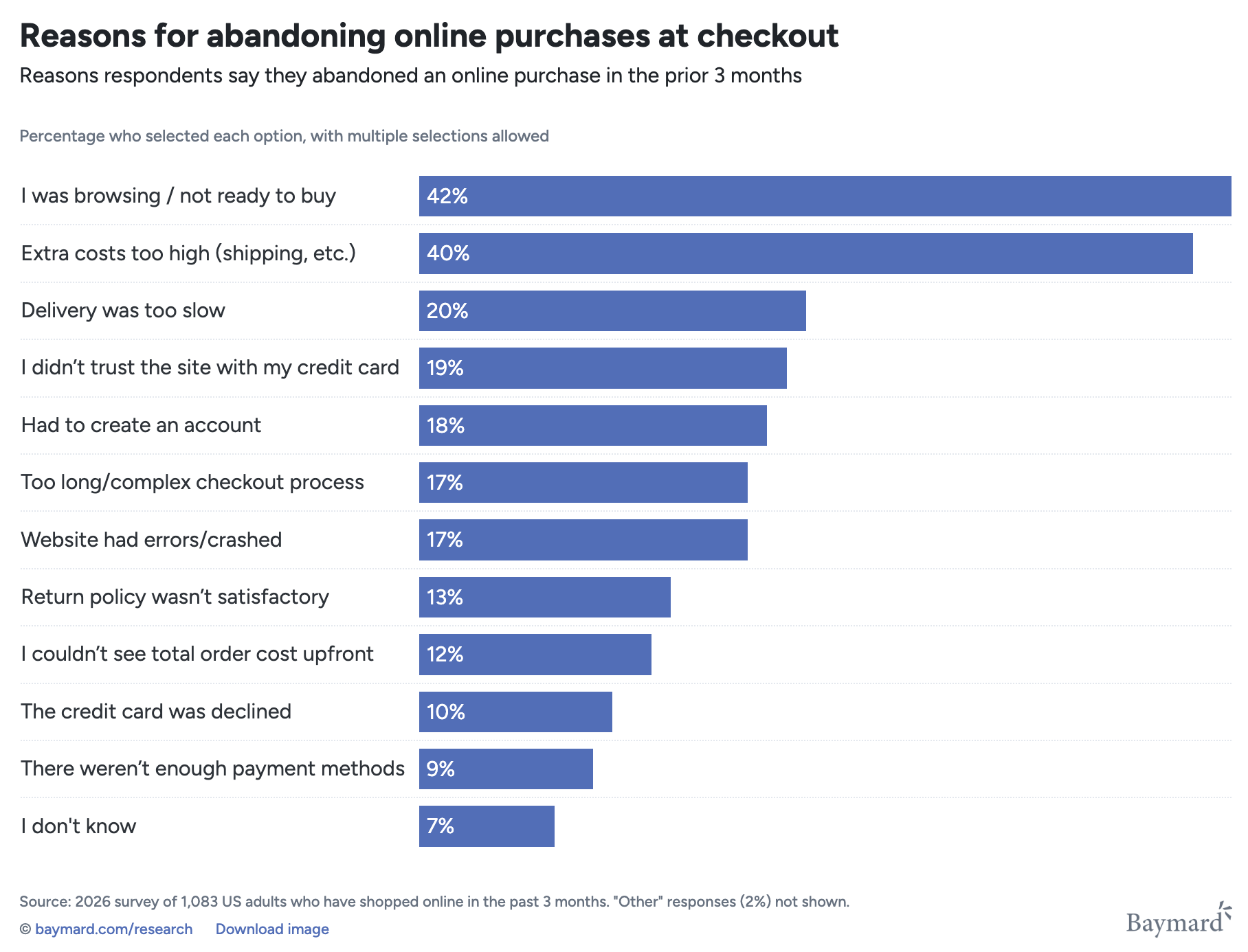
Every example above shares a key similarity: a small technical failure lands at the exact moment a customer was ready to pay, and cart abandonment follows.
Website bug examples that damage the user experience
Not every bug blocks a sale directly, but plenty of them erode trust and satisfaction, which costs you conversions further down the line.
Layout and responsive bugs
Content overlapping, elements running off-screen on mobile devices, or a hero image that only breaks at one specific screen size on desktop devices are some of the most common website bugs because so few teams test every breakpoint on different pages, not just the one they designed for.
Broken links and 404s
Internal links pointing to web pages that no longer exist, especially inside navigation menus or footer links, where a broken link gets seen by nearly every visitor.
Content and spelling mistakes
Outdated pricing, a typo in a headline, or a spelling mistake sitting in a section every visitor reads. None of these stop a user interface from functioning, but they chip away at customer satisfaction and make a site look unfinished.
Slow-loading pages and performance bugs
Pages that stall on an image-heavy section, an app crashing outright on a weaker device, or interactions that lag just enough for a user to click twice, triggering a duplicate action neither the user nor the site intended.
A memory leak in a single-page section can produce the same lag over a long session, with website performance degrading the longer a user stays on the page.
Console and JavaScript errors
Errors that don't visibly crash the page but quietly break a specific feature, like a dropdown menu or a filter, with no on-screen message telling the user anything went wrong.
You'll only spot these by checking console outputs, which is why they're so easy to miss during a quick visual check, and why usability issues like these often go unreported for months.
A site affected by these issues won't necessarily lose a sale on the spot, but visitors are less likely to trust it, a reputation that follows the brand to the next visit.
Website bug examples that create accessibility barriers
Accessibility bugs deserve their own category because they affect a specific and significant group of users just as seriously as a broken checkout affects everyone.
- Missing or unhelpful alt text on images, so a screen reader user gets nothing useful, or hears a file name read aloud instead of a description.
- Color contrast that's too low to read comfortably, especially white text placed over a busy image.
- Interfaces that can't be operated by keyboard alone, trapping a keyboard-only user on a page with no way to move past it.
- Form fields with no proper label, so a screen reader has no way to tell a user what information is actually being requested.
You can check your own site for accessibility issues like these with proper accessibility testing and website monitoring before a real end user runs into them.
None of these bugs are rare edge cases. They show up on well-built sites that simply have never been tested with a screen reader or a keyboard-only workflow, and they're just as damaging to that visitor's experience as any conversion-blocking bug.
Website bugs examples that create security risks
Security bugs are a smaller category, but with high stakes, since these bugs not only frustrate users, but also put their data at risk.
- Cross-site scripting bugs. User input that gets rendered directly on a page without being sanitized first, letting an attacker inject a script that runs in another visitor's browser.
- Exposed error messages. A server error page that reveals a stack trace or other internal details instead of a generic message the visitor can actually understand.
- Weak input validation. Fields that accept input they should reject, from oversized uploads to characters that were never meant to reach the database as written.
- Publicly reachable pages or endpoints. An admin page or an internal tool left accessible without a login, the kind of thing ethical hackers running a routine scan tend to find quickly.
Left unchecked, security vulnerabilities like these are how minor oversights turn into full data breaches. They're rarer than a broken button, but worth checking for specifically, since nobody stumbles onto them by accident during a normal browsing session.
How to spot hidden website bugs with real examples
Some of the costliest bugs pass a manual test, only appearing under conditions a standard test plan doesn't reproduce.
Cross-browser rendering differences.
A layout that looks fine in Google Chrome but breaks in Mozilla Firefox or Safari, simply because testing happened in one of the popular browsers and stopped there.
Cross-browser testing across the different browsers and operating systems your actual visitors use catches these before launch.
Device- and viewport-specific bugs
An issue that only appears at one exact screen width is easy to miss unless someone happens to resize a browser window to that precise point rather than testing a handful of common device sizes across different devices.
Third-party script conflicts
A chat widget, an analytics tag, or an ad script that breaks another element on the page. Nobody wrote broken code for that element directly, but two scripts that were each fine on their own collided.
Silent failures that are only visible in real sessions
Rage clicks on an element that looks clickable but isn't, or a form that fails only for users running a specific browser extension or ad blocker.
No amount of scripted testing catches issues like these every time. It depends on conditions that exist on a real visitor's device, not a QA environment.
At this point, you need more than manual testing. Written test cases only cover what someone thought to write down, and even strong test coverage can't predict every way real users interact with your page in the wild.
Practice manual testing on your key pages, but pair it with a way to see what real users actually experienced, such as a session replay tool, when something went wrong, as that's usually the fastest way to find bugs your test cases never anticipated.
How to catch and report these bugs
Understanding the categories above and recognizing the bugs in each helps you identify issues and prioritize them, but somebody still has to report bugs and get them in front of a developer with enough detail to fix them, ideally without adding extra steps to an already busy development process.
Marker.io can help. It won't stop bugs from happening. No tool does. Once a bug is noticed, the reviewer can give the developer everything they need to fix it.
The reviewer opens the widget on the live page and marks up the broken element directly on a screenshot using the website annotation tool. That report arrives with the browser and device it happened on, while the relevant console output gets attached automatically as well.
Developers picking it up don't have to ask which browser, what screen size, or what the error actually said. It's all there in the issue, which keeps a development team moving instead of chasing down user feedback across three different tools.
Marker.io is a useful tool when it comes to reporting the conversion and UX bugs covered earlier. However, you’ll need something more for the hidden bugs in the previous section, since those still depend on a human or a session recording noticing that something looked wrong in the first place.
A capture tool complements a proper testing process designed to provide a seamless user experience, but it doesn't replace one.
Conclusion
Website bugs are easier to act on once you stop sorting them by cause and start sorting them by damage. A checkout bug and an accessibility bug both need fixing, but they need fixing for different reasons and often by different people, on different timelines.
Whether it's a frozen "Add to cart" button, a color contrast problem, or a rendering glitch that only shows up in one browser, the fix starts with someone catching it and describing it clearly enough to act on.
If you want that part of the process to take minutes instead of a back-and-forth email thread, start a free trial of Marker.io and see how much faster feedback moves when every report arrives with the context a developer actually needs.
Website bugs examples FAQs
What's the difference between a website bug and a software bug?
A website bug specifically affects something a visitor sees or interacts with on a live site, like a broken button or a layout issue. A software bug is the broader term, covering any unintended behavior in any program, including ones with no visible interface at all.
How do teams usually find website bugs before customers do?
Most teams combine manual testing across browsers and devices with automated testing for regressions, then add a way to capture and report anything real users encounter once the site is live, as that's where hidden bugs tend to surface first.
What should I do now?
Here are three ways you can continue your journey towards delivering bug-free websites:
Check out Marker.io and its features in action.
Read Next-Gen QA: How Companies Can Save Up To $125,000 A Year by adopting better bug reporting and resolution practices (no e-mail required).
Follow us on LinkedIn, YouTube, and X (Twitter) for bite-sized insights on all things QA testing, software development, bug resolution, and more.
Will Sigsworth
Will manages organic content at Marker.io. He also works as a marketing advisor and contributor to a number of other SaaS businesses.
Related blog posts


Get started now
Free 15-day trial • No credit card required • Cancel anytime