
The 11 Most Common Website Accessibility Issues and How to Fix Them
In this guide, you’ll learn the most common website accessibility issues, how to fix them, and the tools to prevent them happening again.


Accessibility is a tough challenge for any business, but it’s not only important, it’s also fixable. In this guide, you’ll learn the most common website accessibility issues, how to fix them, and the tools to prevent them happening again.
TL;DR
- Use WCAG guidelines as your baseline for web accessibility requirements and compliance issues.
- Run an accessibility audit with automated tools and manual audits. Automation helps, but it won’t catch everything.
- Start with the highest-impact website accessibility issues: missing alt text, insufficient color contrast, keyboard navigation, and form fields without labels.
- Make reporting simple so teams actually fix accessibility problems. The best accessibility solutions don’t die in a backlog.
What are website accessibility issues?
Website accessibility issues are accessibility barriers in digital spaces that prevent people with disabilities from using a web page effectively. These barriers can affect people with vision disabilities like low vision and visual impairments, hearing difficulties, motor disabilities, and cognitive disabilities.
Web accessibility is about ensuring your content works with assistive technology and communication technology, including screen readers and other assistive technology that users rely on. It also helps people with temporary limitations, older adults, and even sighted users dealing with bright sunlight or a cracked screen.
The Web Content Accessibility Guidelines (WCAG) are the most widely used accessibility standards, published by the World Wide Web Consortium. In practice, many teams target Level AA as the “strong baseline” for an accessible website, while having tools to ensure you’re following region-specific regulations, such as an ADA compliance checklist, is also advisable.
According to the CDC, about 1 in 4 adults in the United States has a disability. If your site has accessibility issues, you may be locking out a huge chunk of potential website visitors before they even reach your homepage.
Common accessibility issues typically fall into four buckets:
- Visual barriers – Missing alt text, insufficient color contrast, image content with no text alternative, and color-only meaning.
- Motor barriers – Mouse-only interactions, broken keyboard navigation, focus traps, and inaccessible online forms.
- Auditory barriers – Missing video captions, missing transcripts for audio content, and no synchronized captions.
- Cognitive barriers – Unclear instructions, inconsistent layouts, time limits without options, and overly complex language.
How to identify accessibility issues on your website
You can’t fix accessibility issues you don’t see.
The most reliable approach combines automated checkers and manual audits, plus real user feedback where possible. Automated tools scale. Humans catch the nuance.
Manual testing with screen readers and keyboard navigation
A fast, revealing test is to stop using your mouse and try your site with only the keyboard:
- Use the Tab key to move forward through the navigation bar, links, buttons, and form fields
- Use Shift + Tab to move backward
- Use Enter and Space to activate controls
Next, test with screen readers on common operating systems:
- VoiceOver on macOS and iOS
- NVDA or JAWS on Windows
- TalkBack on Android
This is where you’ll spot real-world accessibility barriers: unclear link text, headings that don’t map to the page structure, missing image alt text, and forms that “look labeled” but lack proper tagging.
Automated accessibility scanning tools
Automated tools are great for catching fast, repeatable web accessibility issues like missing alternative text, contrast failures, and unlabeled form fields.
Popular web accessibility tools include:
- WAVE
- Accessibility Insights
- Lighthouse
One caveat: how much an automated process can catch is debatable, so make sure you have manual steps in the process for QA and user acceptance testing.
User testing with people who have disabilities
Tools can tell you if an image is missing alt text. They can’t tell you if the alt text is actually useful.
Testing with a diverse range of users, including people who are visually impaired and other assistive technology users, will surface problems that automated tools miss entirely.
11 common accessibility issues and how to fix them
1. Missing or non-descriptive alt text
Alt text, also called alternative text, is what screen readers announce for images. If you have missing alt text or vague text alternative content, screen reader users lose context.
- Bad:
image1.jpgorphoto - Good:
Product packaging showing ingredients and allergen info
How to fix accessibility issues
Write image alt text that matches the purpose of the image. If an image is purely decorative, use empty alt text so assistive technology skips it.
2. Insufficient color contrast
Color contrast is the difference between foreground text and its background, or between a colored component and its background. Insufficient color contrast is one of the most common accessibility problems for people with low vision and other visual disabilities.
WebAIM’s Million report found low-contrast text on 81% of homepages.
How to fix color contrast issues
Run a color contrast checker and adjust your palette until it passes WCAG thresholds.
3. Missing or incorrect heading structure
Headings create an outline that screen reader users depend on to scan and navigate. WebAIM’s Screen Reader User Survey reports that advanced users are far more likely to use headings to find information.
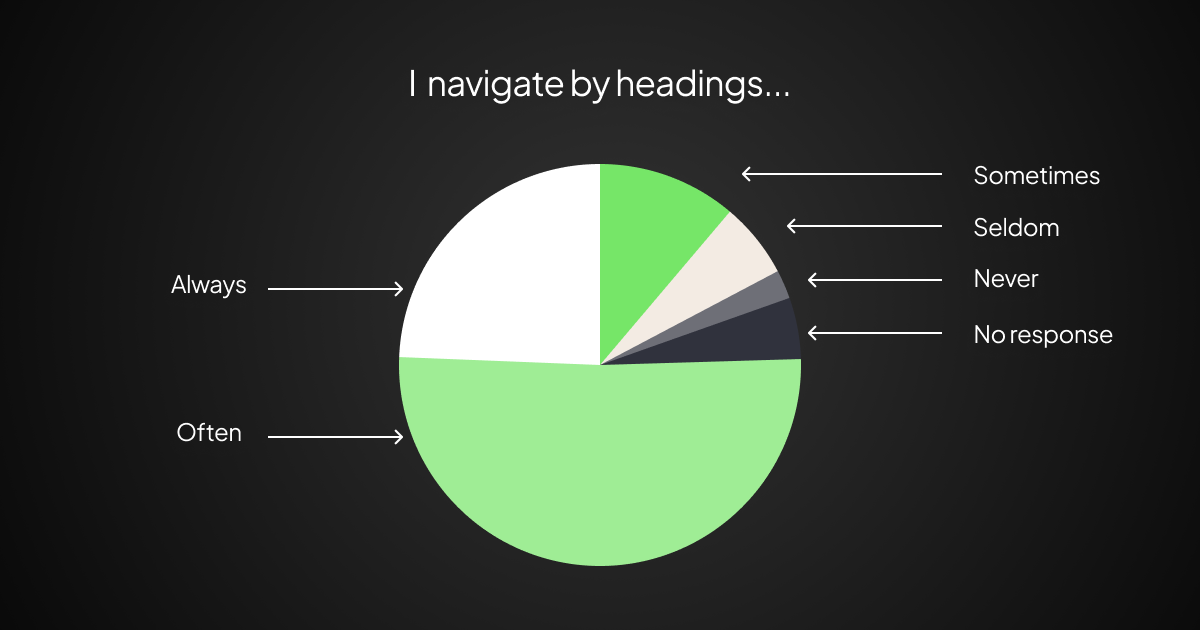
Common failures include:
- Multiple header levels skipped, like jumping from H2 to H4
- Headings used for visual styling instead of structure
- Sections that look like headings but lack proper tagging
How to fix missing or incorrect heading structure
Use a single H1, then H2s for major sections, H3s for subsections, and so on.
4. Inaccessible forms and missing labels
Online forms often create accessibility issues when form fields don’t have programmatic labels. Placeholder-only labels are a classic failure because they disappear when users type.
How to fix inaccessible forms and missing labels
- Use
<label>elements connected to inputs - Ensure errors are announced to assistive technology users, not just shown visually
- Verify focus order and keyboard navigation through all form fields
5. Keyboard navigation and focus issues
Some users can’t use a mouse and rely on keyboard navigation due to motor disabilities or temporary limitations. If focus indicators are invisible or elements can’t be reached via Tab, keyboard users get stuck.
How to fix keyboard navigation and focus issues
- Test what’s missing by unplugging your mouse
- Make every interactive element reachable by the Tab key
- Keep a visible focus state
- Avoid focus traps in modals and menus
6. Vague or misleading link text
Screen reader users often pull a list of links on a page. If your link text is “click here” ten times, it’s meaningless out of context.
How to fix vague or misleading link text
Write link text that describes the destination, like “Download the accessibility audit checklist,” not “Read more.”
7. Missing captions and transcripts for audio and video
Without video captions and synchronized captions, users with hearing difficulties can’t access video. Without transcripts, audio content is inaccessible in quiet environments, offices, or to people who can’t hear the audio.
How to fix missing captions and transcripts for audio and video
- Add synchronized captions to video
- Provide transcripts for audio-only media
- Include captions in embedded visual media by default
8. Inaccessible tables and data
Data tables need the correct markup so screen readers can map relationships between column headings and data cells. This gets especially painful with complex data tables.
Common issues:
- Tables used for layout
- Missing
<th>headers or incorrect scope - No association between header cells and data cells
How to fix inaccessible tables and data
- Ensure you have
<th>coded in for headers - Use tables only for tabular data
- For simple data tables, add
<th scope="col">and<th scope="row"> - For complex data tables, use proper associations and test with screen readers
9. Incorrect or missing ARIA attributes
Accessible Rich Internet Applications (ARIA) attributes are specific HTML attributes that add semantic information to web elements. ARIA can help assistive technology understand custom UI components. It can also make things worse when poorly coded or duplicated on top of native elements.
How to fix incorrect or missing ARIA attributes
- Prefer semantic HTML first
- Add ARIA only when needed
- Test with screen readers after every change
10. Inaccessible PDFs and embedded documents
Inaccessible documents are still everywhere: PDFs without structure, scanned PDFs with no selectable text, and PowerPoint presentations exported without tags.
How to fix inaccessible PDFs and embedded documents
- Ensure proper tagging, reading order, and alternative text for images
- Provide an HTML alternative whenever possible
- Don’t ship documents that lack proper tagging for headings and tables
11. Missing skip navigation links
Without a skip link, keyboard users have to Tab through your entire nav on every page.
How to fix skip navigation links
Add a “Skip to main content” link as the first focusable element on the page.
The best tools to audit website accessibility
If you’re looking for the best tools to detect accessibility issues on websites, think in layers: quick page checks, site-wide monitoring, hands-on assistive technology testing, and color contrast tools are all needed.
Here are the best tools to audit website accessibility, grouped by what they’re good at:
Browser-based accessibility checker tools for fast audits
These automated tools are ideal for quick wins during development:
- WAVE
- axe DevTools
- Accessibility Insights
- Lighthouse
Use at least two. Each catches different classes of web accessibility issues.
Site-wide scanning and automated monitoring
For larger sites and ongoing compliance issues, you’ll want scheduled scans and CI checks:
- Lighthouse CI
- axe-core in automated testing
- Pa11y
- Potentially an enterprise platform
Automation helps you scale, but it won’t replace manual audits and real user testing.
If you want to combine feedback, bug tracking, and automated website monitoring in one place – with a manual stage to make sure you spot every issue – sign up for early access to our Website Monitoring feature.
Screen readers and OS tools
For real coverage across operating systems, you can use the following:
- VoiceOver on macOS and iOS
- NVDA or JAWS on Windows
- TalkBack on Android
This is where you’ll catch broken keyboard navigation, confusing heading structure, and missing context that automated tools can’t judge.
Color contrast tools
Use a dedicated color contrast checker when you’re designing and when you’re validating production UI. WebAIM’s data makes it clear how common this failure is.
How to track and report accessibility issues across your team
Finding accessibility issues is only half the job. The other half is getting them fixed across teams and tools, and in good time.
This gets harder in the private sector when multiple stakeholders touch the same pages: brand, legal, content, design, engineering, website QA testers, regional teams – more pages means more regressions, while more stakeholders can confuse things without airtight processes.
A solid accessibility issue report includes:
- Exact web page URL and environment details.
- Steps to reproduce with expected vs. actual behavior.
- Impacted user group, like screen reader users, keyboard-only users, or people with low vision.
- Evidence, like screenshots, video, or a short clip showing the behavior.
- WCAG reference when relevant, so the fix maps to accessibility requirements.
Tools like Marker.io help teams report website accessibility issues directly on the page with annotated screenshots, technical metadata, and session replay. Those issues can sync into tools like Jira thanks to the Marker.io integration with Jira, so they stay visible next to other work.
Conclusion
Accessibility issues don’t need a massive rewrite to make progress.
Start with an accessibility audit using automated tools, then do manual audits with keyboard navigation and screen readers. Fix the big hitters first: missing alt text, color contrast, form labels, and focus order.
You’ll reduce legal risk, improve digital accessibility, ship a more accessible website for everyone, and increase your chances of driving revenue.
Web accessibility issue FAQs
What are the legal consequences of ignoring website accessibility issues?
Websites with accessibility barriers can face lawsuits and regulatory pressure under laws like the Americans with Disabilities Act in the US. One widely cited legal analysis reports over 4,000 website accessibility lawsuits filed in federal court in 2024.
In the EU, the European Accessibility Act took effect on June 28, 2025, expanding accessibility requirements for covered products and services.
Which accessibility issues should website owners prioritize first?
For most website owners, prioritize issues that block core navigation and comprehension:
- Keyboard navigation and focus order
- Insufficient color contrast
- Missing alt text and poor text alternative quality
- Unlabeled form fields in online forms
These common accessibility issues affect a wide range of users and are often straightforward to fix.
How often should websites be audited for accessibility issues?
Run an accessibility audit after major releases, redesigns, CMS changes, and localization waves. For large sites, quarterly manual audits and automated monitoring help catch regressions before they pile up.
What WCAG conformance level should my website meet?
WCAG defines three conformance levels: A, AA, and AAA. Level A is the most common target because it balances coverage and feasibility for most teams.
What should I do now?
Here are three ways you can continue your journey towards delivering bug-free websites:
Check out Marker.io and its features in action.
Read Next-Gen QA: How Companies Can Save Up To $125,000 A Year by adopting better bug reporting and resolution practices (no e-mail required).
Follow us on LinkedIn, YouTube, and X (Twitter) for bite-sized insights on all things QA testing, software development, bug resolution, and more.
Nathan Vander Heyden
Nathan is Head of Marketing at Marker.io. He used to work as a SEO consultant for various SaaS companies—today, he's all about helping Web Ops teams find more efficient ways to deliver bug-free websites.
Related blog posts

Get started now
Free 15-day trial • No credit card required • Cancel anytime