
UAT Environment: Meaning, Setup, and How to Run UAT Smoothly
Learn the meaning of UAT environment: what it includes, how to set up a UAT test environment, and the mistakes that derail UAT before release.


A UAT environment is where business users and end users validate that a product matches business requirements, meets user expectations, and supports real business processes before you go live. Done well, this phase catches the last, most expensive-to-fix issues, i.e., the ones that only appear when actual users try to complete real tasks.
In this guide, you’ll get a clear understanding of what a UAT environment is, how it fits into the software development lifecycle, what a solid setup includes, and the common mistakes that cause UAT (user acceptance testing) to fail, even with a great build.
TL;DR:
- A UAT environment is a dedicated, production-like environment for user acceptance testing (UAT) with real users.
- It should mirror the production environment: data, configuration, permissions, and integrations.
- UAT fails when teams shortcut the setup, rush timelines, or collect feedback in messy channels.
- A tight feedback loop, with structured reports and context, is the difference between successful UAT and failure.
What is a UAT environment?
A UAT environment is a separate, production-like space where real users validate that software behaves as expected before release.
That “separate” part matters. A UAT environment isn’t for the development team to tinker in, and it isn’t the same as QA’s test bed. It’s a controlled environment designed for UAT execution against defined acceptance criteria and user requirements.
Here’s the plain-English UAT environment meaning:
- Purpose – Validate the software meets business objectives and supports real-world usage.
- Who it’s for – Business stakeholders, business users, product owners, and end users (often a limited group).
- What happens there – Users run test scenarios, execute test cases, and confirm the software complies with acceptance criteria.
How it differs from dev and QA environments
A quick way to think about testing environments:
- Dev environment – Built for speed and change. Breakages are expected.
- QA test environment – Built for verification. QA teams run regression, integration, and functional testing.
- UAT test environment – Built for validation. Actual users confirm the software works for real business flows.
That separation reduces human error, keeps results trustworthy, and avoids issues being missed because one user didn’t experience them on their browser or device.
Here's where QA and UAT fit into the software development lifecycle.
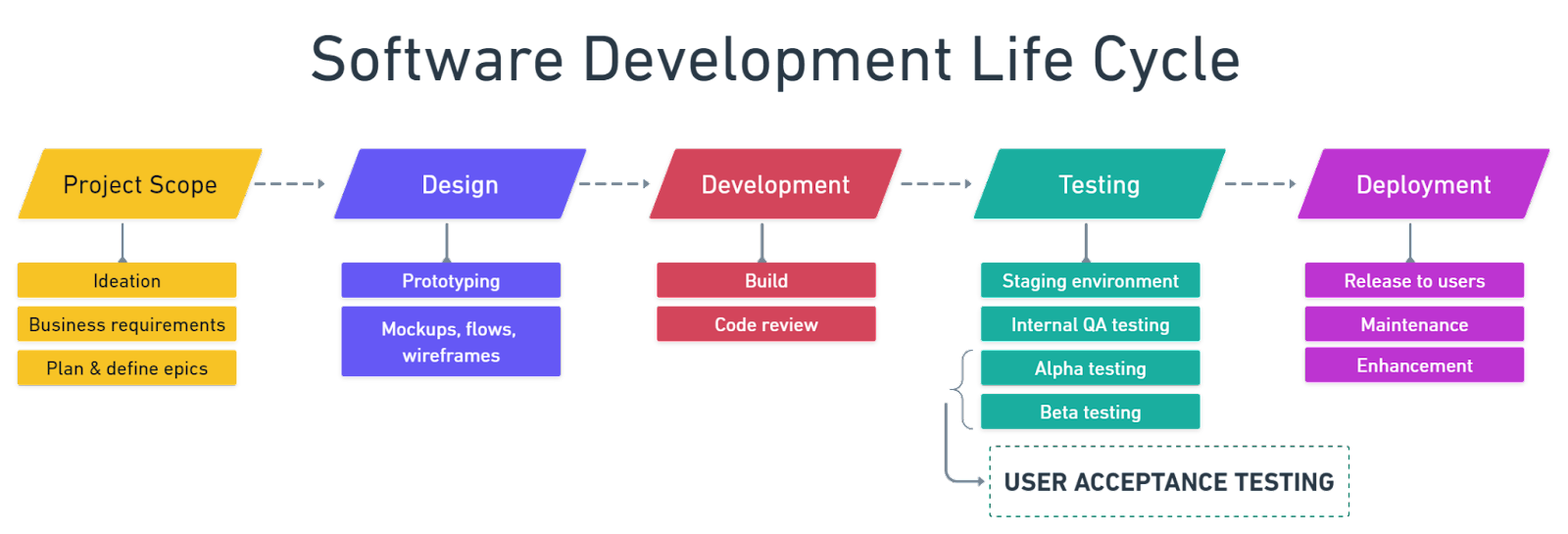
Once you’ve got clarity on what a UAT environment is, the next step is understanding where it sits in the broader delivery flow.
How a UAT environment fits into the software development lifecycle
UAT sits late in the software development lifecycle because it’s meant to answer one question:
“Does this software meet the needs of the target audience and the business?”
In most teams, UAT is the final phase before go-live, or very close to it. It typically comes after development work is complete for the scope being released, the functionality has been reviewed internally, QA has run the core software testing process, and a stable build is available for business validation.
Depending on your organization, UAT may follow other testing phases like alpha testing and beta testing.
- Alpha testing is often internal, providing early validation and feature-level confidence.
- Beta testing is often external or with broader internal groups, testing real-world conditions thanks to wider coverage with beta testers.
- The UAT phase provides focused validation against business requirements and acceptance criteria, usually with business users.
Here’s a quick comparison of alpha and beta testing that shows the difference:
Implementing UAT in your process can reduce post-launch issues by 85%, while skipping or shortcutting the UAT stage can cause post-release bugs that only show up in real-world scenarios.
What a UAT environment needs to include
A UAT environment works when it’s close enough to production that results are meaningful, but controlled enough that testing is safe and repeatable.
At a minimum, your UAT strategy should ensure the environment includes:
- Production-like test data
- Realistic user roles, access, and permissions
- Stable builds and predictable deployments
- A clear feedback channel for defect tracking and triage
And because UAT is about real-world usage, you’ll want your testers to run test cases that reflect business processes, not just technical paths.
Data and configuration
Dummy data is one of the fastest ways to get misleading UAT results.
A strong UAT environment uses anonymized, realistic data so end users can run real workflows and hit realistic edge cases. That usually means:
- Anonymized production snapshots, or production-shaped datasets
- Data that supports real test scenarios, such as accounts, orders, products, permissions, and localization
- Configuration that mirrors production: feature flags, integrations, environment variables, and security settings
If the configuration doesn’t match the production environment, UAT test results can look fine, but then production fails on day one.
Access and permissions
UAT is not a developer playground. It’s a space for business stakeholders and end users to validate behavior.
Clean access control keeps the signal strong:
- Business users and UAT team members get the roles they’ll have in real-world conditions
- Developers get limited access – enough to support, but not enough to test for users
- Permissions reflect actual user roles, especially for enterprise workflows
If a UAT tester can do everything because they’re accidentally an admin, you’re not validating real-world usage, you’re validating a best-case fantasy.
Tools and processes
Even with perfect data and roles, UAT fails without structure.
A reliable UAT process includes:
- A UAT plan with scope, timelines, and ownership
- A test plan that defines test scenarios and acceptance criteria
- A shared definition of “done” (e.g., pass rate, severity thresholds, and sign-off steps)
- A reporting phase and triage rhythm: who reviews issues, when, and how decisions are made
- Tooling for communication, evidence, and defect tracking
Now that you know what to include, let’s turn it into an actionable setup you can run with.
How to set up a UAT environment
You don’t need a perfect environment, you need a dependable one.
Here’s a straightforward setup flow for teams doing this for the first time, or trying to make UAT more repeatable:
- Provision the environment
Create an isolated environment that matches production infrastructure where possible. Confirm core integrations, authentication, and key services are available.
- Mirror production configuration
Align feature flags, environment variables, and critical configuration. Document differences that must exist, e.g., sandbox payment provider.
- Seed it with realistic test data
Import anonymized datasets or generate production-shaped data. Ensure data supports UAT test cases and real business processes.
- Set up user roles and permissions
Create accounts for business users and end users, and map user roles to real workflows, including approvals, localization, publishing, and reporting.
- Deploy a stable build
Freeze the build for UAT execution, or use a controlled release candidate process, and make deployments predictable, with clear communication when changes happen.
- Define test scenarios and acceptance criteria
Translate business requirements into test cases that users can follow and agree on acceptance criteria up front to avoid late debates.
- Brief the testing team
Share what’s in scope, what’s out of scope, and how to report issues. Set expectations for timelines, severity, and escalation paths.
- Run UAT and track results
Execute test cases, capture outcomes, and review test results daily, and then decide fast on what to fix now or defer, or even adjust the scope.
If you want a ready-to-copy structure for this, use a user acceptance testing template to standardize the UAT process, test scenarios, and sign-off.
Common UAT environment mistakes to avoid
Most UAT failures aren’t dramatic. They’re slow leaks: small shortcuts that compound into unreliable test results and missed issues.
Here are the common pitfalls teams learn the hard way.
Using production data without anonymizing it
This creates compliance and privacy risk, and it often discourages business users from fully participating.
Use anonymized datasets and document the rules for handling test data so everyone can conduct tests safely.
Letting developers run UAT themselves
Developers are essential for support, but they shouldn’t be the primary testers in UAT.
UAT is about validating user needs in real-world conditions. A development team member can unintentionally skip steps due to their familiarity with the tool and miss usability testing issues that end users encounter immediately.
Changing the build constantly during UAT
If the environment changes every few hours, users lose confidence, and test results become hard to interpret.
A stable build is a core requirement for successful UAT. If you need changes, batch them, communicate clearly, and track what changed.
No clear bug reporting process
When feedback arrives through email threads, spreadsheets, and chat, you get:
- Missing reproduction steps
- No environment metadata
- Conflicting descriptions from different stakeholders
- Slow triage and duplicate work
That’s not a people problem. It’s a process and tooling problem.
Not allocating enough time
UAT needs breathing room. Business users have day jobs, and real workflows take time.
If UAT is squeezed into a few afternoons, the testing process gets boiled down to a checkbox exercise, and you’re almost guaranteed to miss issues that then get identified in production.
The good news is that these mistakes are easier to avoid when you have a clean feedback loop, which is what we’ll tackle next.
How to collect and manage UAT feedback effectively
Inefficient UAT feedback is where most teams lose time.
Not because users don’t find issues – they do – but because there’s a bottleneck in how feedback is captured, clarified, and turned into actionable work for the team.
Fragmented feedback channels slow down the UAT process:
- A screenshot in Slack with no URL
- An email with “it’s broken” and no steps
- A spreadsheet row with no environment details
- A meeting where everyone remembers the bug differently
A good UAT feedback loop has three traits:
- Structured reports – What happened, what was expected, steps to reproduce, and severity
- Visual evidence – Screenshots, annotations, and context
- Automatic environment metadata – Browser, device, OS, page URL, console logs, etc.
That’s the gap Marker.io is built to close.
Instead of asking business stakeholders to write perfect bug reports, Marker.io lets them report issues directly from the page with annotations and screenshots, while capturing the technical context your QA teams and devs need to move fast. It turns vague problems into a clear defect-tracking item that the development team can act on.

If you’re evaluating options, this roundup of user acceptance testing tools is a helpful place to compare approaches.
With feedback under control, one last confusion tends to come up in orgs with multiple testing environments, such as UAT vs. staging. Let’s clear that up.
UAT environment vs. staging environment
UAT and staging environments often look similar because both aim to be production-like, but they’re not the same thing. So, what is the difference between a UAT environment and a staging environment?
The difference is the intent and the audience:
- UAT is user-focused and validation-driven
- Staging is typically internal and deployment-focused
Here’s a quick comparison:
They can overlap, as some teams run UAT in staging, while others keep them separate for governance and control – especially in enterprise setups with lots of stakeholders, brands, or markets.
To decide what fits your org, it helps to first align on the type of UAT you’re running. These user acceptance testing types are a useful way to frame that decision.
Now, let’s wrap it all up and make the case for treating UAT as a first-class part of your software testing process.
Conclusion
A well-run UAT environment is the difference between thinking it works and knowing it works.
When your UAT environment mirrors production, your UAT testing process becomes a reliable validation step:
- Business users can run tests that reflect real-world usage
- The UAT team can execute test cases against defined acceptance criteria
- The testing team can trust the test results and sign off with confidence
- Issues are caught in the final phase, not after go-live
When you make feedback structured and fast, UAT stops being a stressful scramble and becomes a repeatable part of software development.
If you want to make UAT feedback faster, cleaner, and easier to act on, try Marker.io. It gives your stakeholders a user-friendly way to report issues with the context your team needs so you can ship with confidence.
Still got questions? Here are the quick answers teams ask when they’re setting up UAT for the first time.
UAT environment FAQs
What does UAT environment mean?
A UAT environment is a dedicated, production-like testing space where real users validate that software meets business requirements and acceptance criteria before release.
Who should test in a UAT environment?
Typically, business stakeholders, business analysts, product owners, and end users – often a limited group that represents the target audience. Developers support the process but shouldn’t be the primary testers.
How long should UAT testing take?
It depends on scope and risk, but plan enough time for real people to run real workflows, report issues, and re-test fixes – rushed UAT is a common cause of post-release bugs.
What tools are used in a UAT environment?
Common tools include test management docs – test plan and test cases – defect tracking (e.g., Jira), communication channels, and feedback tools that capture screenshots, annotations, and environment metadata to reduce back-and-forth.
What should I do now?
Here are three ways you can continue your journey towards delivering bug-free websites:
Check out Marker.io and its features in action.
Read Next-Gen QA: How Companies Can Save Up To $125,000 A Year by adopting better bug reporting and resolution practices (no e-mail required).
Follow us on LinkedIn, YouTube, and X (Twitter) for bite-sized insights on all things QA testing, software development, bug resolution, and more.
Will Sigsworth
Will manages organic content at Marker.io. He also works as a marketing advisor and contributor to a number of other SaaS businesses.
Related blog posts

Get started now
Free 15-day trial • No credit card required • Cancel anytime