
Accessibility tree
What is the accessibility tree?
The accessibility tree is the structured representation a browser builds from a webpage's DOM tree so that assistive technology, like screen readers and braille displays, can interpret and interact with the page. Also called the accessibility node tree, it exposes each element's role, name, description, and state through the browser's accessibility API, filtering out elements that carry no semantic meaning.
At a glance
Why is the accessibility tree important when it comes to accessibility?
For your website to be digitally accessible, assistive technology needs to be able to use your markup. Everything in the accessibility tree is integral to that functionality. Sighted users read a page through its visual layout: buttons that look clickable, headings that stand out, forms with labels next to their fields. Screen reader users and other assistive technology users rely on what's in the accessibility tree.
If an element is missing from the tree, has the wrong role, or carries no accessible name, it might as well not exist for a screen reader user. As a result, the accessibility tree is the only access point a screen reader user or other assistive technology user has to a webpage. A beautifully designed icon button that a sighted user recognizes instantly could get announced as nothing more than "button" by a screen reader, with no clue as to what it does.
This structure is most impactful when it comes to the elements people interact with, like navigation menus, form controls, custom widgets, and icon-only buttons. Include these properly in the accessibility tree, and you remove some of the most common accessibility issues on the web.
You can't fix what you can't see, so most web developers rely on their browser's developer tools to inspect the accessibility tree directly instead of guessing how a screen reader will announce something, which is covered in more detail below.
How does the accessibility tree work?
Every browser parses your HTML into a DOM tree first: an object for every element, attribute, and text node on the page. The browser then builds an accessibility tree from that DOM tree, using a platform-specific accessibility API, such as UI Automation on Windows or NSAccessibility on macOS, to expose that accessibility information to assistive technology. Each DOM node either gets a matching entry in the accessibility tree or gets filtered out.
The accessibility tree isn't a one-to-one copy of the DOM tree. Browsers strip out nodes with no semantic content, like a <div> used purely for layout or styling, and collapse generic containers that a screen reader user has no reason to hear announced. What's left is a simplified structure built around the important elements on the page.
Every node that survives this process carries four properties:
- Role – What kind of thing it is, such as a button, a heading, or a list.
- Name – How the browser refers to it, usually pulled from visible text, an aria label (
aria-label), or an associated<label>element. - Description – Optional extra detail beyond the name, for when the name alone doesn't say enough.
- State – Anything that can change, like whether a checkbox is checked or a
<summary>element is expanded.
Native HTML elements already have most of this information available. A <button> already has a role of button and a keyboard interaction model built in. A generic <div> styled to look like a button has none of that, so using the right semantic element does more for accessibility than any amount of ARIA added after the fact.
The accessibility tree also updates live. When JavaScript changes an element's state, hides it, or adds an aria-live region, the browser updates the accessibility tree and notifies whatever assistive technology is listening, without a page reload being required.
An accessibility tree example
Here's the difference a semantic element makes, using two versions of the same button.
<button>Submit</button>The Edge, Firefox, and Chrome accessibility trees all expose this as an accessibility node with role button, name "Submit," and a focusable state, with no extra markup needed.
<div class="button-style">Submit</div>This version can look identical, but it won’t make it into the accessibility tree as anything useful. It gets a generic role, no accessible name, and isn't focusable, so a keyboard or screen reader user can't reach it or work out what it does.
You can see this yourself. Open your browser's developer tools, right click the element on the page, and choose the Inspect tool. In Chrome or Edge, click the Accessibility tab next to the Styles tab in the Elements panel to see the accessibility node for whatever's selected, or toggle "Show accessibility tree" to replace the DOM tree view with the full accessibility tree for the whole page. In Firefox, open the Accessibility panel from the DevTools toolbox, or right-click any element and choose Inspect Accessibility Properties.
Each node's Computed Properties section shows exactly how the browser worked out its role, name, and state, which is usually the best starting point if you need to debug why a screen reader announces something incorrectly.
Here is a visual example of an accessibility tree, with a DOM tree for comparison:
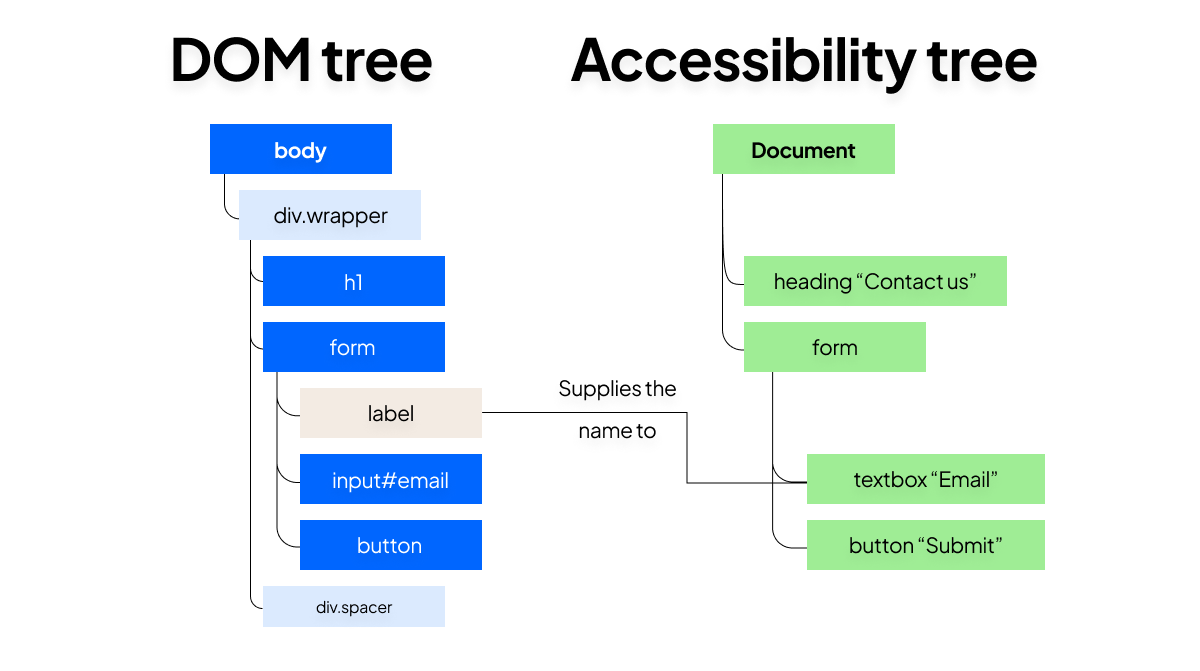
Accessibility tree vs. DOM tree
The accessibility tree and the DOM tree get confused constantly, since the former is built directly from the latter.
Adding a <div> never changes the accessibility tree unless that div actually carries a role or other accessible information.
Common mistakes or misconceptions
- Assuming ARIA fixes everything. Adding
role="button"to a<div>gives it the right role in the accessibility tree, but you still have to wire up keyboard handling and a visible focus indicator yourself. A native<button>element gets all of that automatically. - Believing more ARIA attributes are always better. Stacking
aria-label,aria-labelledby, and a redundantroleon an element that already has a working native label just adds noise, and browsers don't always resolve conflicting attributes the way you'd expect. - Confusing hidden visually with hidden from the tree.
display: noneremoves an element from the accessibility tree entirely, but moving text off-screen with CSS keeps it in the tree and readable to screen readers. It's a useful thing to know when it comes to visually hidden labels, but a mistake if you actually wanted the element gone from both. - Testing only with automated tools. Automated scanners catch a missing accessible name or a bad role, but sometimes can't tell you whether the accessible experience actually makes sense out loud. Testing with a real screen reader occasionally catches the accessibility issues automated tools miss.
Frequently Asked Questions
How do you inspect the accessibility tree in a browser?
Select the element you're curious about first, then look for the browser's dedicated accessibility view: the Accessibility tab in Chrome and Edge's Elements panel, or the Accessibility panel in Firefox's DevTools toolbox. Either one shows the exact role, name, and state the browser computed for that element, so you don't have to guess what a screen reader will announce.
How does the accessibility tree help screen reader users?
A screen reader doesn't see or render a webpage visually. It reads the accessibility tree, node by node, and converts each one's role, name, and state into speech or braille output. When an element's information is accurate in the accessibility tree, a screen reader user gets an equivalent experience to a sighted user, just delivered by voice or touch instead of sight.
What are the best practices to optimize the accessibility tree?
Use semantic HTML elements every place where they already do the job, since they populate the accessibility tree correctly without any extra work. Give every interactive element an accessible name, keep ARIA attributes limited to cases native HTML can't cover, hide only genuinely decorative content with aria-hidden, and then confirm the result with your browser's accessibility tab and a real screen reader.
Try our website monitor free
Automate website monitoring tasks
and keep your pages compliant