
The Bug Life Cycle: Every Stage Explained For Software and Websites
A full look at the bug life cycle and the software bug life cycle: every stage, a website example, and how to stop bugs stalling or reopening.


Introduction
A bug life cycle is the path a bug takes from the moment someone finds it to the moment it's confirmed fixed and closed for good. It sounds simple, but very few bugs travel a straight line. Most pick up a status, get handed to someone else, get sent back at least once, and only reach "closed" after a few rounds of back and forth.
That back and forth is exactly what this article breaks down and tries to tackle.
You'll get a clear definition of the bug life cycle in software, a look at how it plays out specifically on websites rather than in a generic app, every stage and status involved, and a worked example that follows one bug from report to close.
Along the way, you'll see the mistakes that make bugs stall, reopen, or quietly resurface on a page nobody's looking at.
What is a bug life cycle?
The bug life cycle, also sometimes called the defect life cycle, is the sequence of statuses a bug moves through from the point it's found to the point it's verified as fixed and closed. It's a core part of the software testing process, and its intent is to ensure a bug never just sits in someone's inbox with no owner and no next step.
Instead of a single "reported" and "fixed" status, a mature bug tracking system breaks the journey into smaller stages:
- New
- Assigned
- Open
- Fixed
- Retest
- Verified
- Closed
There are also a few extra statuses for bugs that don't behave.
Each stage has a clear owner, so at any point, anyone on the team can look at a bug's status and know exactly whose job it is to move it forward.
This should be the reality whether the testing team relies on manual testing, automated testing, or a mix of both. The testing process decides how a bug gets found in the first place, but the life cycle itself is what happens after that, regardless of how the bug was caught.
It’s important to follow a structure like this if you're managing bugs in a mobile app, a backend service, a new feature, or a website.
The stages stay largely the same. What changes is who's involved and how much environment detail actually matters, which is where a website bug life cycle starts to look a little different.
What is the life cycle of a website bug?
A website bug's life cycle runs through the same stages as any other software bug, but a few things play out differently in practice:
- Who finds the bug. The reporter often isn't a QA tester at all. On a lot of website teams, it's a marketer reviewing a new landing page, a designer checking a build against a mockup, a client looking over a staging site before launch, or even a customer involved in user asseptance testing – none of whom are trained testers.
- What environment details mean. On a website, that means the browser, the operating system, the device, and the screen size. A layout that looks fine on a widescreen monitor in Chrome can break completely on an older phone in Safari, and that mismatch is one of the biggest reasons website bugs stall in "Non-Reproducible" or "Need More Information" instead of moving toward a fix.
- Where the bug actually lives. Website bugs often sit inside a shared template, component, or piece of CMS content rather than a single isolated page. A bug marked "Closed" after a fix on one page can quietly reopen weeks later on a different page that uses the same component – especially after a redesign, rebrand, or CMS migration touches shared elements across the site.
This article walks through the standard bug life cycle stages, then uses a website bug as the running example so you can see exactly how these differences show up in practice.
Why you need an understand of the bug life cycle
A structured bug life cycle gives every bug a clear owner at every stage, which is the main reason it's worth the extra process overhead. Without it, a bug can sit unassigned for days simply because nobody was sure whose job it was to pick it up.
It also creates a record you can actually learn from. A defect that's properly tracked through each status gives you the raw material for root cause analysis, so teams can spot patterns instead of treating every bug as a one-off surprise.
Over time, that record supports genuine continuous improvement: which types of software bugs keep coming back, which stages take the longest, and where the process itself is the bottleneck.
Good defect management also protects software quality directly. A team that can identify bugs early and resolve defects consistently, while keeping an eye on its reopened bugs, ships fewer critical bugs to production than one relying on ad hoc fixes and memory.
The cost of skipping this structure tends to show up later, once a bug that could have been caught in "Open" or "Retest" has already reached live users and needs an urgent fix instead of a routine one.
The fundamental stages of the bug life cycle
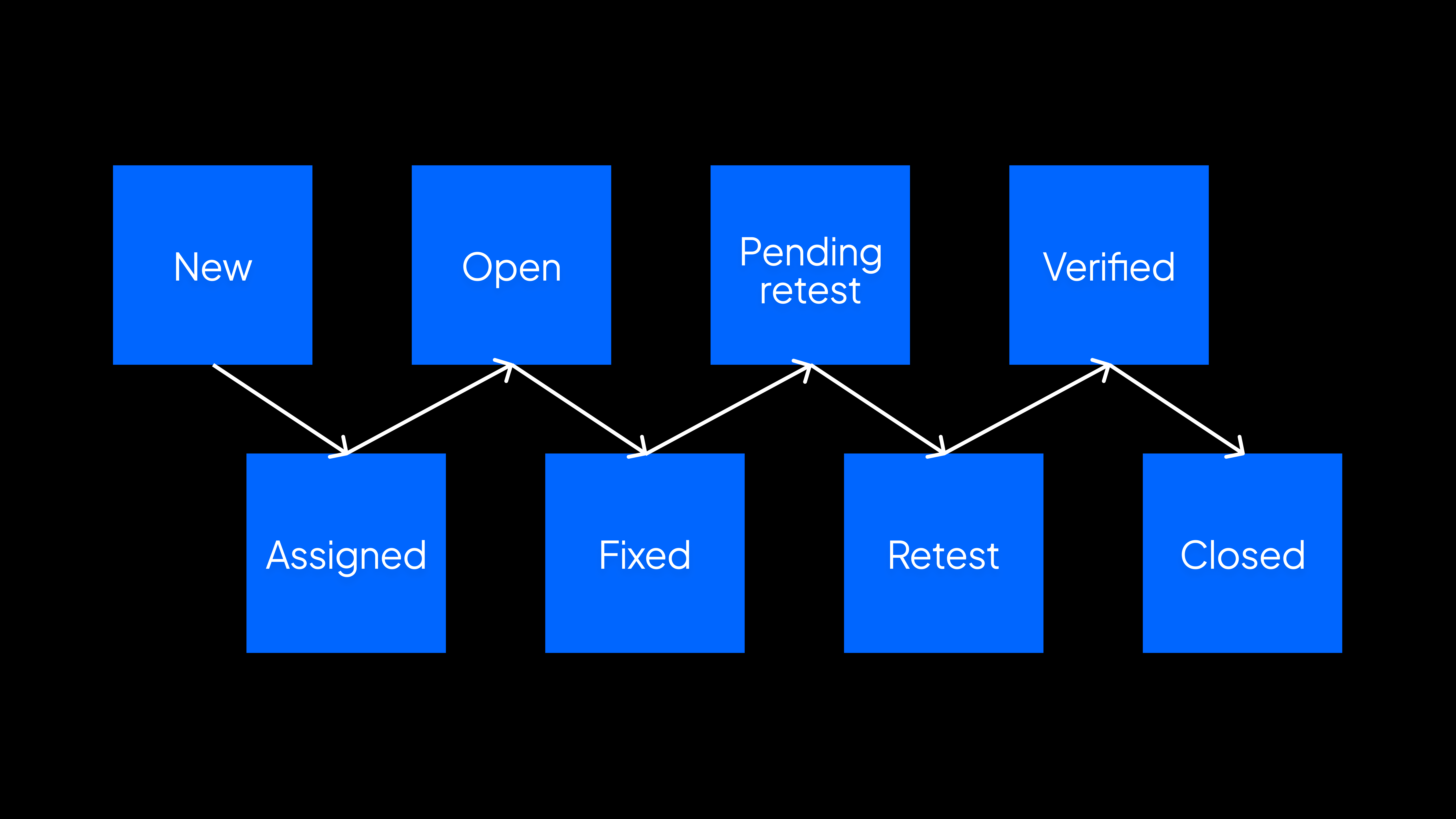
These are the core stages almost every bug tracking system uses, in the order a bug typically moves through them.
New
A tester, client, or team member finds an issue and logs it in the bug tracking system for the first time. At this point, the bug is unreviewed.
On a website team, this is often where report quality makes or breaks everything downstream. A report with a screenshot, the exact URL, and the browser or device it happened on gives the development team something to act on immediately. A report that just says "the page looks wrong" does not.
Assigned
A QA lead, project manager, or team lead reviews the new bug, confirms it's genuine, and hands it to a specific developer. The status changes to "Assigned," and from this point on, there's one clear owner responsible for investigating it.
Open
The assigned developer starts working on the bug: reproducing it, digging into the cause, and writing the fix. For a website bug, this usually means opening the page in the browser and device combination from the report and confirming the same layout or functional issue actually shows up.
Fixed
The developer finishes the change and marks the bug "Fixed." The code is ready, but nobody outside the development team has confirmed it yet, so the bug isn't done. It's just ready for someone else to check.
Pending retest
The fix is deployed to a staging or test environment and the bug sits in "Pending Retest" until a tester picks it back up. This stage is easy to overlook, but a bug can quietly stall here for days if nobody owns moving it into active retesting.
Retest
A tester goes back to the original steps to reproduce the bug and checks whether the issue is actually gone. On a website, a careful retest also checks nearby elements on the same page, since a fix for one layout issue can shift something else nearby.
Verified
The tester confirms the fix works and the original problem is genuinely resolved. The bug moves to "Verified," which signals that the fix held up under the same conditions that caused the original bug.
Closed
The bug is officially closed once it's verified and there's no further action needed. This is the final stage in the standard bug life cycle, and once the bug status changes to "Closed," the record stays in the tracker as history rather than an open task.
Other bug life cycle statuses
Not every bug follows that straight line from new to closed. A handful of other statuses cover the cases where a bug takes a detour:
- Reopened. A bug that was marked fixed or closed shows up again, often because the original fix didn't hold or because it was tested in a different environment than the one where the bug actually occurs.
- Rejected. The development team decides this isn't a genuine defect, whether because it's a duplicate, working as designed, or a misunderstanding of the requirements.
- Duplicate. The same bug has already been reported by someone else, so the newer report gets linked to the original instead of tracked separately.
- Deferred. The bug is real, but it's low priority enough to push to a future release rather than fix right now.
- Not a Bug. The behavior is actually intentional, and the person who reported it just wasn't expecting it.
- Non-Reproducible. The developer can't recreate the issue using the steps provided, which on a website is very often down to a browser, device, or screen size the report didn't mention.
- Can't Be Fixed. A technical constraint, often a third-party tool or platform limitation, makes the issue unfixable as reported.
- Need More Information. The report is missing details the developer needs to reproduce it, so it sits here until the reporter fills in the gaps.
"Non-Reproducible" and "Need More Information" come up disproportionately often for website bugs specifically, since so many layout and rendering issues only appear in one particular browser, device, or viewport.
An example of a website bug life cycle
Here's how the stages above actually play out on a real website bug.
A marketer is reviewing a new promotional banner on a product page ahead of launch. On his desktop in Chrome, everything looks fine. On his laptop, checking the same page in Safari, the banner overlaps the "Add to Cart" button, making it hard to tap. He takes a screenshot, notes the URL along with his device and browser, and logs it as a new bug.
A QA lead reviews the report the next morning, confirms it's a real layout issue, and assigns it to the front-end developer who built the banner component. The bug moves to "Assigned."
The developer opens the page on a similar laptop and browser combination and reproduces the overlap immediately, since the report included enough detail to skip the guesswork. The bug moves to "Open" while she adjusts the banner's spacing for smaller screens.
Once the fix is deployed to staging, she marks the bug "Fixed," and it moves to "Pending Retest." A tester picks it up, checks the same page on the same device and browser, and confirms the banner no longer overlaps the button.
She also checks the same banner component on two other pages that use it, since a shared component was involved. The bug moves through "Retest" and into "Verified."
The QA lead does a final check, sees no other reports linked to the same component, and closes the bug. The whole cycle took under two days, mostly because the original report had everything the developer needed the first time.
Who's involved in the bug life cycle?
A handful of roles show up across most bug life cycles, though who actually fills them varies a lot depending on the team.
- The reporter. On a formal QA team, this is a dedicated tester. On a lot of website teams, it's a marketer, designer, or client reviewing a build or a live page.
- The QA lead or triager. Someone reviews new bugs, confirms they're genuine, and assigns them to the right developer. On smaller teams, this might be the same person managing the whole project.
- The developer. Responsible for investigating the root cause and implementing the fix.
- Stakeholders and web ops. In larger enterprise organizations running many websites or brands, a web operations or digital excellence team often sits above the day-to-day cycle, watching for patterns across sites rather than individual bugs.
The bigger the website footprint, the more these roles multiply, and the more a shared, structured process matters instead of everyone tracking bugs their own way.
Common mistakes in bug life cycle management
A few mistakes show up again and again, and most of them are process gaps rather than technical ones:
- Vague bug reports. A report missing steps to reproduce, the environment, or a screenshot forces a developer to go hunting for context instead of fixing the issue.
- Skipping regression testing. Confirming the original bug is fixed without checking nearby functionality is how a fix for one problem quietly introduces another.
- Treating every bug the same severity. A typo and a broken checkout button shouldn't compete for the same priority slot, but they often do when severity and priority aren't clearly defined.
- Losing track of bugs during a redesign or migration. Shared templates and components mean a bug fixed on one page can resurface on another after a broad content or structural change.
- Letting bugs sit unowned. A bug parked in "Pending Retest" or "Assigned" with nobody actively responsible is functionally the same as an open bug nobody's working on.
Best practices for a structured bug life cycle
Most of these come down to giving people enough information to act without needing to ask follow-up questions:
- Write detailed bug reports. Include the expected and actual results, exact steps to reproduce, and environment details like browser, device, and screen size.
- Attach evidence automatically where possible. Screenshots, console logs, and network logs turn a vague description into something a developer can act on immediately.
- Define severity and priority upfront. Agree on what counts as critical, high, medium, and low before bugs start coming in, not while arguing about one specific bug.
- Run regression checks after every fix. A quick pass over the surrounding page or feature catches side effects before they reach users.
- Track your own metrics. Reopened bug rate and average time to fix by severity tell you where the process itself needs attention.
- Fold fixes back into the software development process. Treat a pattern of similar bugs as a signal to change how a feature gets built, not just a queue of individual defects to fix.
Bug tracking tools to help you manage the life cycle
A bug tracking system is what actually holds the life cycle together. Without one, statuses live in someone's memory, or a shared spreadsheet, and bugs fall through the cracks the moment more than a couple of people are involved.
Marker.io is built specifically around the reporting and retesting stages of a website bug's life cycle. You click directly on the issue on the live page, and it captures an annotated screenshot along with console logs, network logs, and browser, OS, and screen size details automatically, so the "New" stage starts with a report a developer can act on right away.
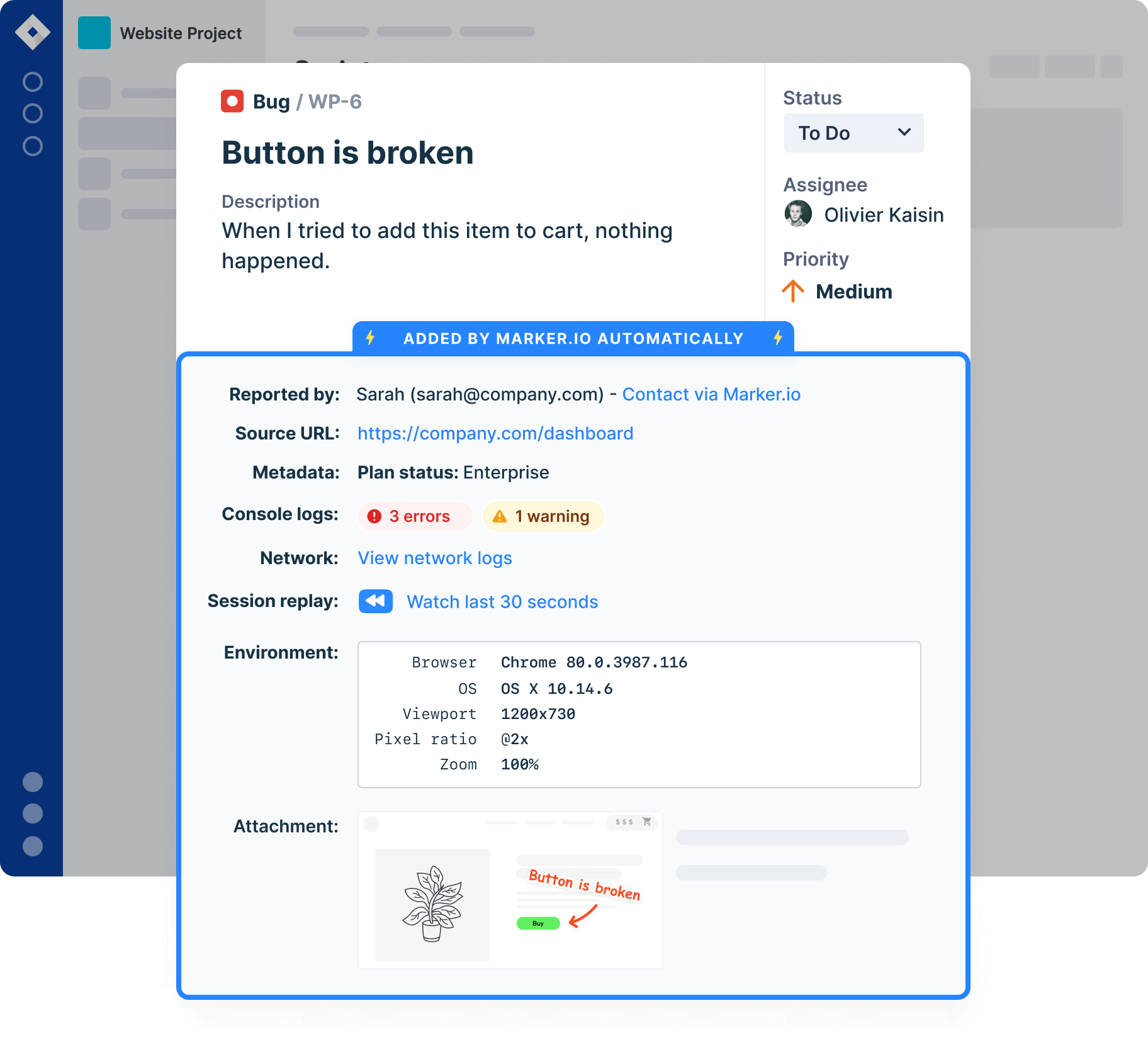
It's genuinely useful for capturing and routing website bugs with context attached, though it isn't built to run a full software development backlog on its own, and teams typically pair it with a broader project tool for that side of the work.
That's also why Marker.io integrates with popular bug tracking tools like Jira, so a bug captured on the website can flow straight into wherever the development team already manages its backlog, without anyone needing to re-type the same details twice.
Understanding a tool's limitations upfront and pairing it with the right integration often has as much of an impact on team efficiency as picking the single best tool on a list.
Conclusion
The bug life cycle isn't complicated once you see it laid out stage by stage, but it only works if every bug actually moves through those stages instead of stalling somewhere in the middle. On a website, that mostly comes down to two things: reports detailed enough to skip the guesswork, and enough visibility to notice when a "closed" bug quietly comes back on a different page.
If you're managing bugs across a website and want reports that already include the environment details and evidence a developer needs, try Marker.io free and see how much faster a bug can move from new to closed.
Bug life cycle FAQs
What's the difference between bug severity and bug priority?
Severity measures how much technical damage a bug causes, like whether it crashes the site or just misaligns a button. Bug priority measures how urgently it needs fixing, which depends on business context as much as the bug itself. A low-severity bug on your highest-traffic page can still be high priority. Read our guide on how to use bug severity vs. priority to keep your team moving forward.
What happens when a bug is reopened?
A reopened bug goes back into the active development stages, usually "Assigned" or "Open," with notes on why the original fix didn't hold. It's worth tracking your reopened bug rate specifically, since a high rate usually points to rushed fixes or incomplete retesting rather than bad luck.
How long should a bug stay in pending retest?
There's no fixed rule, but a bug sitting in pending retest for more than a day or two on an active project is usually a sign nobody's clearly responsible for picking it up. Assigning a specific tester to each fix as soon as it's deployed keeps this stage from becoming a silent bottleneck.
What should I do now?
Here are three ways you can continue your journey towards delivering bug-free websites:
Check out Marker.io and its features in action.
Read Next-Gen QA: How Companies Can Save Up To $125,000 A Year by adopting better bug reporting and resolution practices (no e-mail required).
Follow us on LinkedIn, YouTube, and X (Twitter) for bite-sized insights on all things QA testing, software development, bug resolution, and more.
Gary Gaspar
Gary is Marker.io's CEO. He's passionate about startups, growth and business. Before Marker.io, he ran a web design agency. Outside of work, he's the biggest basketball fan!
Related blog posts



Get started now
Free 15-day trial • No credit card required • Cancel anytime