
A 508 Compliance Checklist to Help Web Teams Keep Their Site Accessible
Use this 508 compliance checklist to audit, test, and launch accessible web apps. Includes a 508 compliance checklist PDF template and remediation workflow.


Section 508 compliance isn’t a once-a-year audit, it’s a build-and-release habit if you’re a U.S. federal agency or one of the organizations they work with. You should treat it the same way you treat security checks, performance budgets, or uptime regressions.
You can run this practical 508 compliance checklist as a guide on what to check, how to test it every release, what tools to use, and how to track fixes across product, design, engineering, and QA.
If you’re the person responsible for accessibility sign-off, or you support people who are, you’ll leave with a clean workflow you can operationalize.
TL;DR:
- A section 508 compliance checklist is a repeatable set of requirements and tests for information and communication technology (ICT).
- Section 508 not only applies to federal agencies, but also vendors, contractors, and agencies that supply them, as well as some organizations receiving federal funds.
- Section 508 conformance for web and non-web electronic content commonly maps to WCAG 2.0 A/AA checks – without turning your team into standards lawyers.
- Automated scans help, but manual testing (keyboard and screen reader smoke tests) is what catches real blockers.
How to use this 508 compliance checklist
This checklist is designed to help federal agencies and the companies that supply them stay compliant with Section 508.
It’s a repeatable set of accessibility requirements and tests you can run to confirm your web pages, web applications, domains, and supporting electronic content meet Section 508 expectations for information and communication technology.
In practice, it’s two things:
- A requirements checklist – What “good” looks like: keyboard accessibility, text alternatives, semantics, etc.
- A testing checklist – How you verify it before release: automated checks, keyboard run-through, screen reader smoke test, and evidence captured in tickets
What it’s not:
- Just automated scans – Scanners can’t tell if your error message is understandable, your focus order makes sense, or your custom widget behaves predictably for screen reader users.
- Just a VPAT / ACR – A Voluntary Product Accessibility Template (VPAT®) / Accessibility Conformance Report (ACR) is primarily documentation for procurement – it doesn’t replace testing your actual UI.
- Just color contrast – Contrast is important, but accessibility is also structure, functionality, and assistive technology compatibility.
- Just something you do during site refreshes – 508 compliance checks are most effective when there’s a process in place to ensure any changes to the site that could affect accessibility are reviewed, without too much time sink.
Who has to be compliant with section 508?
Section 508 applies to ICT developed, procured, maintained, or used by U.S. federal agencies – and often to vendors selling into those federal agencies. It’s rooted in the Rehabilitation Act and includes an “undue burden” concept, which is real but not something you want to lean on as a default engineering strategy.
For web teams, the major coverage areas to account for include:
- Keyboard access and no keyboard traps
- Focus order and visible focus
- Semantic structure, including headings, landmarks, and lists
- Forms and errors, like labels, instructions, validation, and announcements
- Images and non-text content, like alt text
- Color contrast and non-color cues
- Reflow, zoom, and large text support
- Motion and animation controls
- Multimedia, including captions, transcripts, and audio descriptions when needed
- Documents, such as PDF documents, Word documents, electronic documents, and downloadable images
- Assistive tech compatibility, like screen readers, operating systems, and browser combos
Most web-facing Section 508 technical requirements align closely with WCAG success criteria. The revised 508 standards incorporate WCAG 2.0 Level AA by reference for web and non-web electronic content, which is why WCAG-style checks are so useful for day-to-day QA.
The non-negotiables for web apps
If you only have time to enforce a “minimum viable accessible” bar for every release, make it these:
- Keyboard accessibility – Every interactive element can be reached and used with Tab, Shift+Tab, Enter, Space, and arrow keys (where relevant). No keyboard traps.
- Visible focus – You can always see where you are. Focus styles aren’t removed, and focus doesn’t disappear on custom components.
- Semantic structure – Headings are real headings, buttons are real buttons, lists are real lists, and landmarks exist where they help (header/nav/main/footer).
- Forms that don’t guess – Every field has a programmatic label, required fields are identified, and errors are explained in text, not just color.
- Text alternatives – Images, icons, and controls have usable accessible names, with meaningful alt text where needed, and appropriate text alternatives for non-text content.
If your product meets those five requirements consistently, you’ve removed a huge percentage of the most common accessibility barriers – and you’re ready to tackle the issues that are easier to miss next.
The easy-to-miss items
These are the accessible elements on websites that slip through because everything seems to work… until a user hits a dead end:
- Dynamic content announcements – Status messages, inline validation, toasts, and live updates are announced to screen readers when it matters.
- Modals and dialogs – Focus moves into the dialog, stays trapped appropriately, returns to the trigger, and the dialog has an accessible name.
- Skip links – A visible-on-focus “skip to content” (or equivalent) exists on pages with repeated nav.
- Drag-and-drop alternatives – If you support dragging, you also support an alternative means, like keyboard controls.
- Timeouts and session expiry – Users are warned and can extend time where appropriate, especially on critical flows.
- Data tables – Proper headers, associations, and captions/summary where needed, and avoid using tables for layout.
- Documents – Your PDF document exports and Microsoft Word files don’t become a separate inaccessible product.
Before we get into testing, it helps to address the real-world overlap: teams sometimes don’t only need to comply with 508; they also need to meet ADA requirements.
How 508 and ADA show up together
Web teams can run into both:
- Section 508 – most often when you’re a federal agency, a contractor, or selling software/services to federal agencies.
- ADA – often when you’re building public-facing experiences and accessibility is tied to broader civil rights expectations and legal risk.
Many teams use one practical accessibility benchmark (WCAG-style checks) to cover both most of the time, while keeping procurement and documentation differences clear.
Practical guidance: build one accessibility program.
You don’t want separate processes for “508 mode” vs. “ADA mode.” Set up one set of engineering and QA behaviors that improve accessibility across your web content, and then handle the “paperwork layer” separately (e.g., VPAT/ACR for procurement).
Keep the differences clear:
- 508 procurement may require a VPAT/ACR and conformance statements for specific ICT products.
- ADA programs often focus more on ongoing accessibility of online content and user experience, not a one-time document.
Use our ADA compliance checklist if you need to be ADA compliant. Here’s a quick decision tree to help you understand if you need to comply with Section 508 or not.
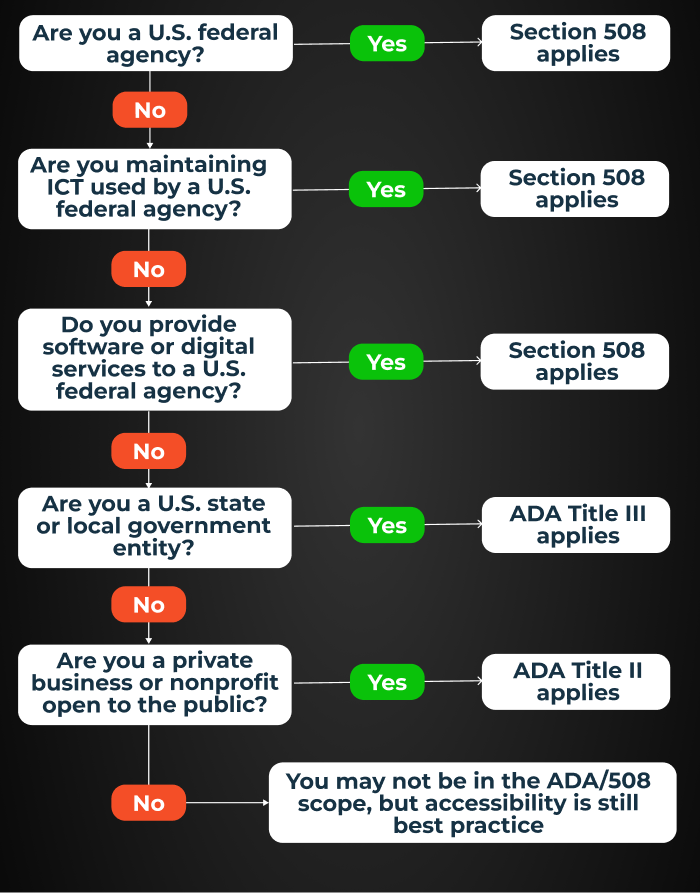
With coverage clear, the next question becomes operational: how do you test compliance at every release without slowing down shipping?
A Complete Section 508 Compliance Checklist
Use this checklist to maintain a consistent pass/fail record, reproducible steps, and ensure evidence is attached to tickets.
Automated checks that are worth running during every PR
Run these early and often – they’re great at catching high-volume, low-context failures:
- Linting in dev – Catch missing labels, invalid ARIA, and common component mistakes before code review.
- Component tests – Assert accessible names, roles, and keyboard interactions for shared UI components.
- CI scans on key routes – Scan critical templates and core flows (auth, checkout, search, forms).
However, there are some things that automation won’t catch:
- Does focus order match visual order and user intent?
- Are error messages actually helpful?
- Does a custom widget’s interaction model makes sense?
- Is this alternative text meaningful?
Automated tools are the fast filter. Next comes the fastest high-signal manual test: keyboard-only.
Manual keyboard testing in 10 minutes
Do this with your mouse unplugged or trackpad ignored and timebox it. Be ruthless.
- Tab through the page – Can you reach all interactive elements: menus, filters, accordions, modals, and other interactive elements?
- Check focus visibility – Is the focus indicator always visible and not obscured?
- Validate focus order – Does focus move logically through the UI, especially around sidebars, sticky headers, and dialogs?
- Open and close key UI – Menus, dialogs, dropdowns, tooltips. Can you escape them? Does focus return correctly?
- Look for traps – Anything that captures focus with no way out is a release blocker.
If it passes the keyboard test, you’re ready for the quickest assistive technology validation that catches the “invisible” issues: screen reader smoke tests.
Screen reader smoke tests
You don’t need to become a full-time AT specialist to do a successful smoke test, but you do need repeatable checks that represent real screen reader users.
Pick at least one per platform:
- Windows – NVDA or JAWS
- macOS / iOS – VoiceOver
Run this on the same critical pages every release:
- Headings and landmarks – Does the page have a meaningful structure? Can a user jump around quickly?
- Forms – Are labels announced? Are the required fields clear? Are errors announced and discoverable?
- Buttons and links – Do names describe purpose, not “click here” or unlabeled icons?
- Dynamic updates – When content changes – search results, cart updates, or inline validation – is it communicated?
Capture outcomes as pass/fail and notes, and if it fails, record exact steps and AT details.
Once functionality is verified, you can finish the loop with content and design checks – the stuff that looks truly polished when done right.
Content and design checks
This is where accessible content meets real-world UI:
- Color contrast – Text, icons, focus states, and meaningful UI controls meet contrast expectations.
- Text resizing and reflow – The layout doesn’t break at 200% zoom, and large text doesn’t overlap or disappear.
- Link purpose – Links make sense out of context, especially in lists and nav.
- Empty states and errors – Users get clear instructions, not just visual cues.
- Motion – Animations don’t block functionality, and users can reduce motion where appropriate.
A launch-ready sequence
At this point you have the testing loop. Now, you need a shipping sequence – who runs what, and when it blocks release. You need to treat accessibility like a first-class release signal. Here’s a sequence that matches how teams ship software.
Pre-dev setup
Owners: Product, Design, and Engineering
- Define target pages and flows – The “accessibility critical path”.
- Set component library rules – What’s allowed and what’s banned.
- Write acceptance criteria that includes accessibility requirements.
Build phase
Owners: Engineering and Code reviewers
- Bake checks into PR reviews – Don’t merge unlabeled controls and broken focus states).
- Add unit and component tests for accessible names and keyboard interactions.
- Define done as accessible – if it fails the checklist, it’s not done.
QA and release gate
Owners: QA and Accessibility lead (or rotating QA owner)
- Run the 508 compliance testing checklist above.
- Verify critical flows end-to-end (not just single pages).
- Document results: pass/fail, evidence, known issues, remediation plan.
Post-launch monitoring
Owners: WebOps, QA, and Product
- Treat accessibility regressions like uptime regressions.
- Maintain an accessibility queue and SLA for critical blockers.
- Re-test when shared components change (because one broken component can break 50 pages).
Our Website Monitoring solution, currently in early access, can help you keep an eye on pages post-launch, with automated site scans and accessibility scoring to help you find and fix issues. See how you can join the early access now.
508 compliance checklist PDF
If you want a 508 compliance checklist PDF to share internally (or keep as an offline QA runbook), Here’s how you can create one:
- Open this checklist in your browser.
- Open Print:
- Windows:
Ctrl + P - Mac:
⌘ + P
- Windows:
- In destination/printer options, select Save as PDF.
- Click Save, choose a folder, and name it something like
508-compliance-checklist.pdf. - Share it with your team via Slack, email, your QA wiki, or your release checklist doc.
Best Tools to Audit Section 508 Conformance
The best accessibility tools are the ones your team will use every week. Tooling should support the workflow you just defined – not replace it.
Here’s how tool categories fit into a Section 508 program:
- Browser extensions for fast feedback – Great for spot checks during dev and QA. Use them to catch obvious issues on any web page before a ticket is even written.
- CI scanners for regression prevention – Catch repeat failures on core routes and shared templates. Useful for large websites where a small change can cascade across thousands of pages.
- Design tools for shift left – Contrast checkers, focus-state review, component annotations, and content linting before build.
- Assistive technology for truth testing – Screen readers, keyboard-only validation, and platform-specific behaviors across operating systems.
A recommended stack for most teams:
- 1 automated scanner: –extension and CI
- 1 manual checklist like the one above)
- 1 screen reader per OS you ship to
Choose tools based on maturity, not hype: If you don’t have a consistent release checklist, don’t start with a complex enterprise dashboard. If you can’t reproduce issues reliably, prioritize better capture and ticket quality over more scanning.
And that’s where tools like Marker.io help: instead of accessibility bugs bouncing between design, QA, and engineering, you can capture issues with annotations, console logs, environment details, and clear reproduction steps – then send them straight into Jira, GitHub, or Linear.
How to Prioritize 508 Fixes From User Sessions
A simple prioritization model works better than a complicated scoring framework nobody uses. Use three inputs:
- Severity – Does it block core functionality for people with disabilities?
- Frequency – How often does it happen?
- Reach – How many key flows, pages, and components are affected?
Next , use a lightweight scoring rubric between 1–3 to grade severity of issue and the priority order to fix each one:
- Severity – 1 = minor friction, 2 = significant friction, 3 = blocker (can’t complete task)
- Frequency – 1 = rare, 2 = occasional, 3 = common
- Reach – 1 = single page, 2 = a flow, 3 = shared component / many pages
Here’s a quick example
- Keyboard trap in checkout: Severity 3, Frequency 3, Reach 2 = 8, so fix this first.
- Minor ARIA label inconsistency on one settings page: Severity 1, Frequency 2, Reach 1 = 4, so fix this later.
To translate session evidence into actionable tickets, standardize the basics in your issue tracking tickets:
- Steps to reproduce
- Expected behavior
- Actual behavior
- Assistive tech used
- Evidence
Marker.io fits naturally here, as you can combine user-reported issues and internal QA captures, attach visual proof and technical context, and route the ticket to the right owner fast – without losing the details that make accessibility bugs reproducible.
Conclusion
A checklist is only useful if it changes and improves team behavior. The value of a 508 compliance checklist isn’t the document – it’s the consistent testing cadence, fast triage, and measurable remediation that follows.
If you want to operationalize Section 508 compliance across web applications, online content, and electronic documents, use the flow in this guide: run automated checks, do the 10-minute keyboard pass, smoke test with screen readers, log issues with evidence, and treat accessibility regressions like production bugs.
And if you want that process to run faster across product, QA, design, and engineering, try Marker.io free to capture 508 issues with complete context – session replays, visual annotations, console logs, and environment details – and send them straight into Jira, GitHub, or Linear, so fixes move quickly instead of getting stuck in translation.
What should I do now?
Here are three ways you can continue your journey towards delivering bug-free websites:
Check out Marker.io and its features in action.
Read Next-Gen QA: How Companies Can Save Up To $125,000 A Year by adopting better bug reporting and resolution practices (no e-mail required).
Follow us on LinkedIn, YouTube, and X (Twitter) for bite-sized insights on all things QA testing, software development, bug resolution, and more.
Will Sigsworth
Will manages organic content at Marker.io. He also works as a marketing advisor and contributor to a number of other SaaS businesses.
Related blog posts

Get started now
Free 15-day trial • No credit card required • Cancel anytime